

Content Creation
Stand out above the noise with our captivating story crafting and content creation services, tailored to engage today's digital audience

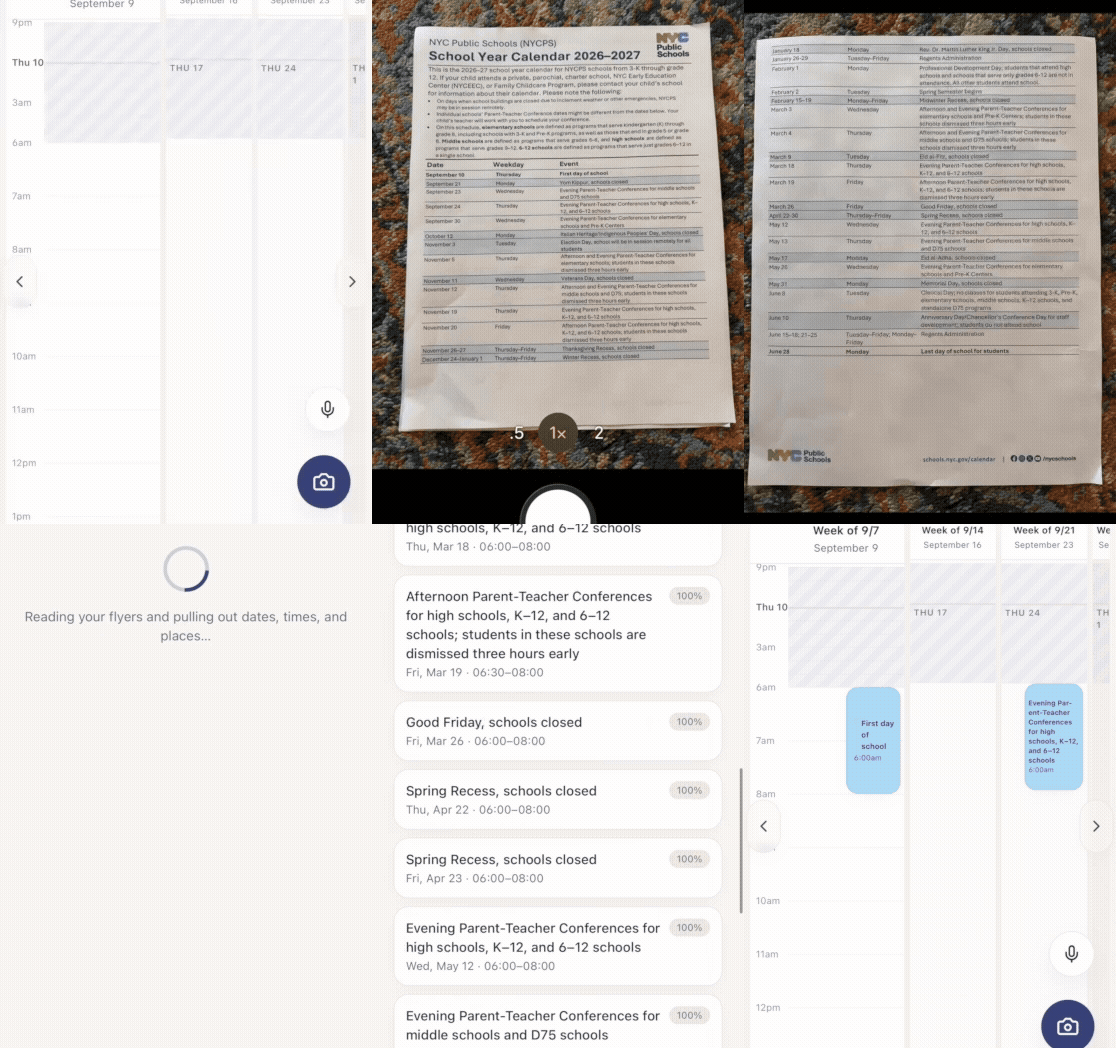
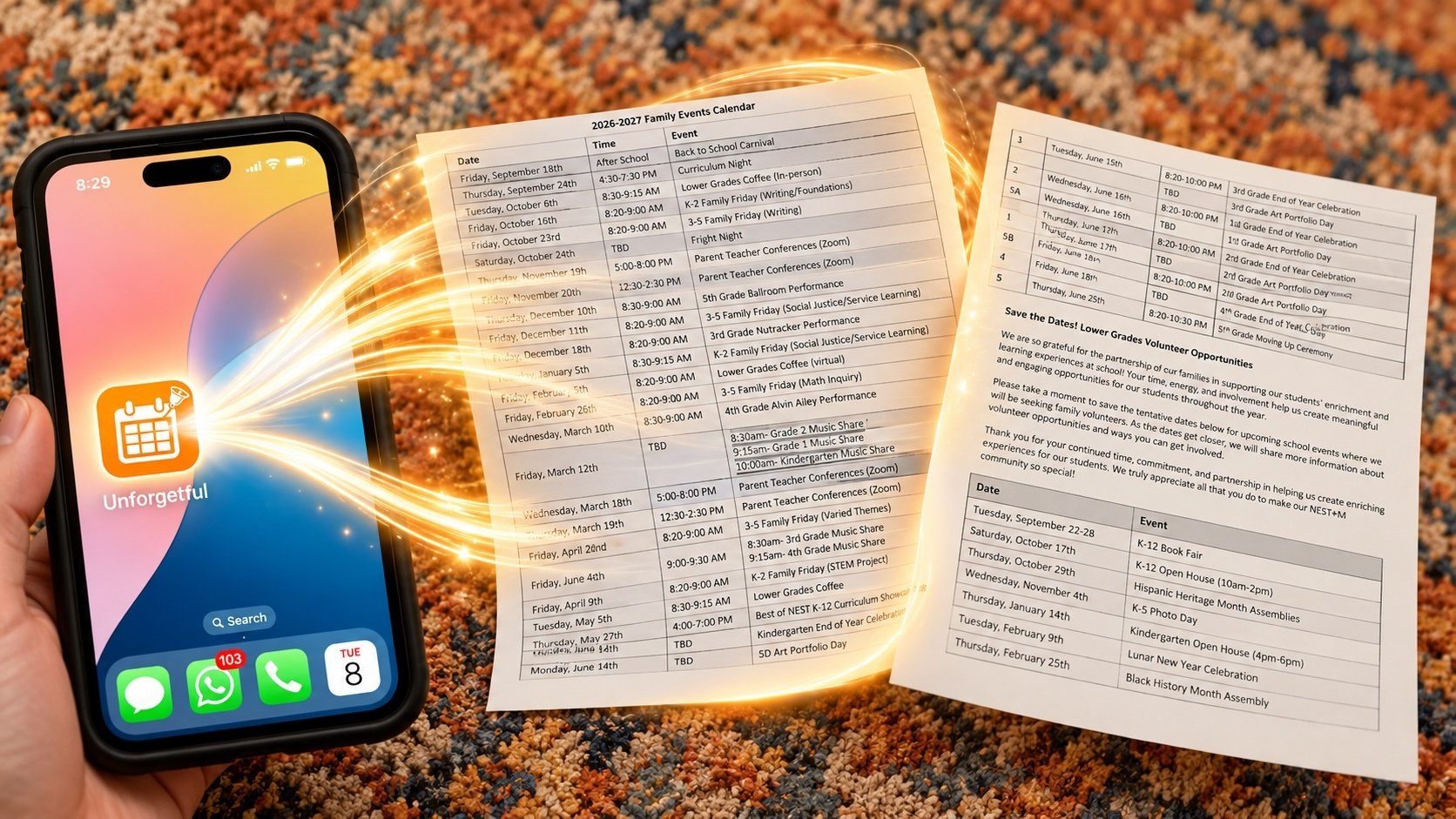
When you start out, feel free to use everything, unless you'd need to take/upload multiple photos a day or multiple recordings to import events to your calendar, set up new timers or reminders. Only then, we require all premium users to sign up for an account.
Not ready to upgrade yet? Just try the calendar management with a unified view of both your personal and professional schedules in one panel. You could just establish a connection to your preferred calendar of choice (Apple or Google or Outlook).
When you decide to upgrade to either an Ultra or an Unlimited membership, then you will need to sign up or sign in to your account. To save your time, you will see the email you used last for your calendar connection to pre-fill the email field when signing up/in. When you are logged in to your account, your connected calendar(s) will be associated with your app account, and next time you sign in on a desktop version you will see your calendar there populated with your event data from your connected calendar(s).
Note that logging out of your app account will also disconnect your established calendar connection(s). But when you log back in your account again, your associated calendar(s) will re-establish connection(s) and your event data will re-populate.
Note about account sharing among family members: it is absolutely fine to share one account with all your family members, teenagers included. But here's a catch—if you allow your spouse and/or kids access your account, they will be able to see all your work and family calendar events altogether. If that's ok with you, then by all means. If you don't want them to see all your work events imported here, then it's better to keep this account to yourself.
It's likely that your employer might not allow you to hook up to your work calendar. That's also where the camera/photo uploading feature comes in handy, allowing you to scan dozens of events at one time into the app. But don't go all in. You could just scan in a few really important work meetings or commitments, so that you know on those days you have to schedule your family activities around those events!
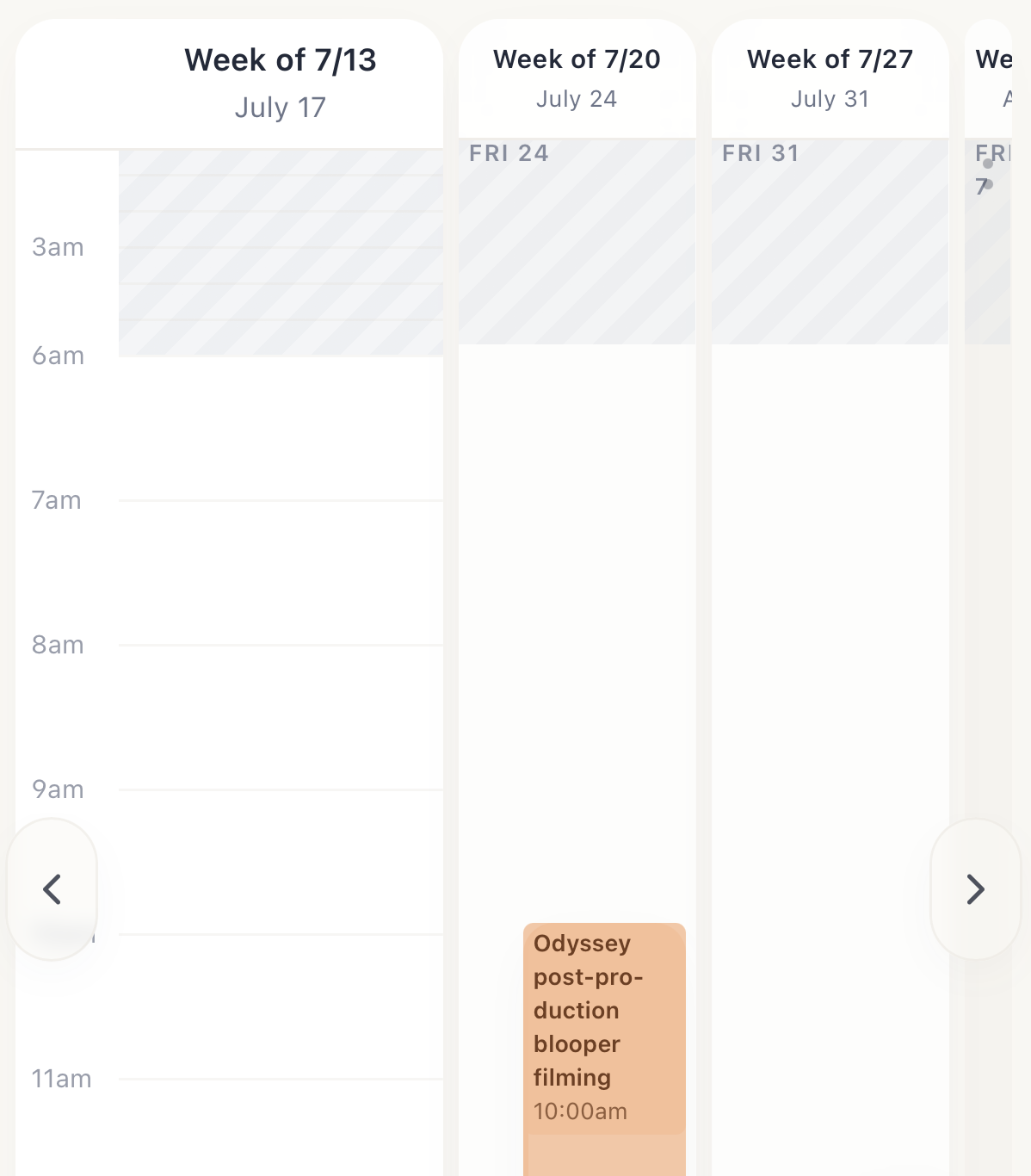 (For example, I got an important work event Friday next week, I see it right away when I am at today/Friday this week, alerting me instantly that I need to be mindful about avoid those hours a week from now to plan anything family related, as that seems a very "important" commitment I have to go to;)
Voice announcements for timers: This was one of the pain points to solve when we started making this app. Using the device native timers are just not task-specific. You set up a timer for a kids screen break for 30 min and by the time it's triggered, there's only a chime or a ding sound, nothing to say "oh, it's time for your child to put that screen down." After weeks of testing, we made the app to announce the timer you set up, even for the ones you start with your voice recordings. And for absolute assuredness, we pre-recorded three main voice announcements so that even there's a glitch with your iPhone's voice notifications or something, these three timers will be absolutely announced with a voice. They are: "Put phone down," "Kids screen break," and "Daily screen max." When you record a timer, you just need to include the exact phrase in your command, and you will hear it when time's up. Other pre-recorded announcements are: Power nap, Cooking check-in, Unplug internet, Kids bed time, Get ready for commute, Stove check.
No. This app doesn’t track any of your activity or usage data.
It’s built to work with your (and your family’s) own motivation. When you choose to practice digital self-discipline, the app supports you by reminding you to put the phone down after a set period of continuous use (40 minutes by default).
No, you absolutely do not have to sign up. (We started out trying to let everyone go without one.) But if you'd like to use premium features, such as unlimited number of photo/recording uploads, then it's best to sign up and log in to enjoy being a premium user.
You don't have to use the same email. We have been using Apple's Calendar for years, and we connect with that calendar with our gmail account, which is associated with our Apple ID. And we could use another, shared gmail account to sign up for the app account.
If you sign up, you could also use the account to sync up the saved timers/reminders and calendar events in the app if you also want to use it on a laptop/desktop through a browser.
Yes, you can absolutely share your account with your family members. But be mindful that when you share your account with them, they will also be able to see all your work (if any) and family events in the app. Make sure that you are okay with that before sharing. Since this app wasn't designed to primarily pull in everything on your work calendar, it might be a good idea to discuss with your spouse about sharing an account, so that both of you can be on the same page on everything happening with kids and family activities that will be populated into this app.
Most likely no, but it depends on your Do Not Disturb settings on your device. We program the timers/reminders to be voice announced (a few important ones) or dinged (like receiving a new text message) within the allowed time frame in your device-wide Do Not Disturb setting. Say if your setting will silence notifications after 10pm, then even if a timer/reminder is triggered after 10pm, it won't be announced or dinged. (It will alert you with an on-screen notification the next time you open the app.)
No. We have configured the firing of the put phone down timer in a way that it won't fire up this timer even if you accidentally tapped the app icon and opened it by mistake just a few seconds after you exited it. Generally, it will only start this timer more than an hour after the trigger of the previous put phone down timer (when it announced that time's up to put your/your child's phone down). If you open the app less than an hour after the previous timer trigger (time's up), it will pop up a confirmation asking you if you indeed want to start such a timer again, or you have opened the app by mistake and want to cancel restarting it so soon.
Honestly, we'd not suggest to delete or stop using your other calendar app(s). We still use our Apple calendar a lot, if not daily. We have been using it for years and have developed a habit of sharing family events through that ecosystem, and it's really convenient that way. But since working on this app, we keep reaping the rewards of that shared calendar system, by copying everything into this app, which we could cross check against work schedules (not every single meeting) and look ahead by a week or two into the near future.
Keep using your built-in clock, timer, and alarm—we do too.
Our app is designed to make one specific job faster and easier: starting a “put phone down” timer with a single tap (40 minutes by default).
You can:
- Start additional timers for multiple kids or family members with one tap each—no endless scrolling like on the iPhone timer
- Create your own custom timers and reminders that fit your family’s routine.
Apple's native Reminder app, though, isn't our favorite, which is partly why we are putting some reminders in our app. We also prioritize some important reminders to be voice announced when it's time for those critical moments, e.g. disconnect internet (to help screenagers take a screen time break), get ready for commute, or stove check (before heading out of house for work).
Unfortunately, or fortunately, no.
"Touch Grass Protocol" (Set for late afternoon): A daily reminder that actual, physical lawns exist outside, and they are reportedly quite refreshing.
"Silence is Suspicious" (Set for 20 minutes): A rapid-tap timer for parents of younger kids. If it’s been quiet for too long, they are either sleeping or painting the living room couch with permanent marker.
"Check if the Teenager has Blinked Today" (Set for 2 hours): A weekend timer to make sure your kid hasn't completely dissolved into their monitor.
"Close the 47 Tabs You Aren't Reading" (Set for Friday afternoons): A weekly digital declutter reminder. Let them go. You are never going to read that article from 2024.
"Adult Recess" (Set for 2:00 PM): A mandatory 10-minute timer where you are legally forbidden from checking emails, Slack, or calendars, and must instead consume a snack in complete silence.
"Pretend to be an Athlete" (Set for weekend mornings): A reminder to swap the screen for a sweaty, real-world smile on the tennis or baseball court before the day gets away from you.
"Get Caught Up on Phone Again" (Set for a couple of hours after a sitting on a beach, a hike on the mountains, etc.): A much-deserved reminder that we are indeed screen-social animals and we really need to check in on a dozen social feeds to remain connected with our friends and the world after a neck pain alleviating, eye strain soothing, brain refreshing, muscle rejuvenating fitness session.


Co-founder